Google's custom chatbots 'Gems' can now refer to uploaded files for context
Google said that uploaded files, while creating or editing a Gem, will serve as source material for the chatbot, which it can use to provide accurate and relevant responses
Harsh Shivam New Delhi Google now allows users to upload files while creating a Gem AI chatbot in Gemini for deeper understanding. In an update to the Gemini AI changelog, Google said that equipping custom chatbots, Gems, with relevant files would allow it to provide more tailored and contextually relevant responses.
Google said that uploaded files while creating or editing a Gem will serve as source material for the chatbot, which it can use to provide accurate and relevant responses. The company said that by referencing uploaded files, the custom AI chatbot will be able to answer questions based on those files, assist in content creation, and address business needs.
Users can upload up to 10 files to customise a Gem. Supported file types include Google Docs, TXT, DOC, DOCX, PDF, RTF, DOT, DOTX, HWP, and HWPX text files. Data files such as Google Sheets, XLS, XLSX, CSV, and TSV are also supported.
Gems are customisable chatbots that can be created and personalised with different characteristics through specific instructions. Available for Gemini Advanced subscribers, Gems can be tailored for specific tasks such as researching a topic, creating a travel itinerary, writing business emails in a specific format, and more. For users who prefer not to create a personalised chatbot, Google also offers pre-made Gems such as Brainstormer, Career Guide, Coding Partner, and more.
How to upload files to Gems instruction
You can customise and create new Gems on both smartphones and the web through the Gem Manager interface. However, it should be noted that you will require a Gemini Advanced subscription to start making one.
- Open the Gemini app on your smartphone or Gemini on the web.
- Log in to your Google Account with an active Gemini Advanced subscription.
- Tap the account section in the top right corner of the Gemini app and select "Gem Manager".
- Gem Manager is available in the expanded menu on the web version, accessible from the top left of the screen.
- Once within Gem Manager, head to the "Your Gems" section.
- You can create a new Gem or edit an existing one.
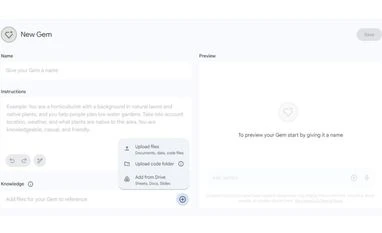
- Within the editor interface of a Gem, head to the "Knowledge" section and tap the plus icon.
- This will open a drop-down menu where you have the option to upload a file, upload a code folder, or add a file from Drive.

 "Google's custom chatbots 'Gems' can now refer to uploaded files for context")


 Connect with us on WhatsApp