As part of the latest Pixel Drop, Google has begun introducing Project Astra-based camera and screen sharing abilities in the Gemini Live interface. These features are available at no extra cost for Google Pixel 9 series and Samsung Galaxy S25 series devices. While users of older Pixel devices can also access the features, they will need a Gemini Advanced subscription.
The new Gemini Live abilities allow people to share their device’s screen or camera feed in real-time with the AI assistant, enabling more interactive and visually-aware conversations.
Camera and screen sharing with Gemini Live: Details
Google said that the update transforms Gemini into a real-time problem solver. Using multimodal processing, Gemini can understand what’s on the screen or in the camera view and offer relevant, real-time help.
For example, users can show Gemini a landmark, a storefront, or a dish through their smartphone’s camera to get instant information. As the camera moves, Gemini updates its responses in real time. Similarly, while screen sharing, users can get help based on what’s displayed on their screen—such as websites, images, or documents.
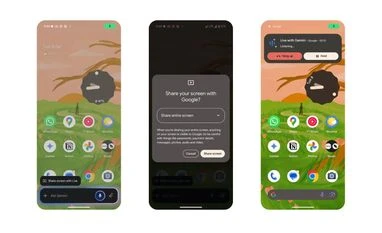
How to share screen with Gemini Live
There are two ways to enable screen sharing:
Through the Gemini Mobile App:
Open the Gemini app and go to the Live interface.
Tap on the new “Turn on screen sharing” button at the bottom.
On the pop-up menu tap on “Share screen.”
Outside the Gemini App:
Activate Gemini by long-pressing the power button or using a voice command.
Tap on the “Share screen with Live” floating button that appears over the Gemini overlay.
On the pop-up menu tap on “Share screen.”
To stop sharing, return to the Gemini mobile app and tap “Turn off screen sharing.” Alternatively, swipe down from the top edge of the screen and tap “Stop sharing” on the Screen Sharing card. Screen sharing also stops automatically if Live is paused or the screen is locked.
How to share camera in Gemini Live
While screen sharing is active, users can open their camera app to show Gemini what they are seeing. Alternatively:
Tap the camera icon in Gemini Live to start sharing a live feed.
Tap it again to stop.
Switch between front and rear cameras as needed.
Google has specified that the camera will automatically turn off in the following situations:
If Gemini Live is paused (it will restart automatically when resumed).
If your screen locks (you will need to manually turn the camera back on).

 "Google Gemini Live update brings screen, camera awareness to these phones")


 Connect with us on WhatsApp