Meta opens Quest headsets for HDMI connection through Link app: Details

The Meta's HDMI Link app offers viewing experience from other devices on to Quest display. Though the app is offered as a freeware, additional hardware is required for establishing HDMI connection
Meta, Meta Quest 3, Meta AI, Meta AI chat bot, Meta VR headset, Meta Connect
meta
Prakruti Mishra New Delhi
2 min read Last Updated : Aug 20 2024 | 1:21 PM IST
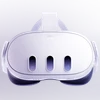
Meta has launched an app for the Quest 3, Quest 2, and Quest Pro models, enabling users to use their VR headsets as a screen for HDMI or DisplayPort-equipped devices, such as consoles, laptops, smartphones, or any video device. The app, called Meta Quest HDMI Link, expands the functionality of the Quest headsets and offers a viewing experience from other devices on a large virtual screen. Users can also resize and reposition the customisable virtual screen within the VR environment.

Meta announced the launch of the app on its blog, noting that using Meta Quest HDMI Link is not as straightforward as Air Link, which is an easier option if the user has reliable Wi-Fi. Meta explained that “HDMI Link is great for situations where the Wi-Fi is spotty, though—and the only option when there’s no internet at all. It also supports many devices that would otherwise be unavailable on Quest.” However, HDMI Link cannot display content protected by HDCP (High-bandwidth Digital Content Protection), which is common with many streaming services.

HDMI Link supports 1080p content with low latency. To use the free Meta Quest HDMI Link app, additional hardware is required. Users will need to add a UVC (USB Video Class) and UAC (USB Audio Class) with the necessary cables, such as USB 3.0. A compatible capture card is also required to connect the HDMI source to the headset via USB. Modern capture cards often include an extra port for a power adapter, allowing the Quest to remain charged while connected.

The Meta Quest HDMI Link app is available on App Lab. Users will need to connect a video device to the capture card input using the appropriate cable and then connect the capture card to the headset. After starting up the Quest, users will need to grant the necessary permissions. Once set up, video from the connected device will be visible on a floating, resizable screen. 
*Subscribe to Business Standard digital and get complimentary access to The New York Times

Smart Quarterly

₹900

3 Months

₹300/Month

SAVE 25%

Smart Essential

₹2,700

1 Year

₹225/Month

SAVE 46%
*Complimentary New York Times access for the 2nd year will be given after 12 months

Super Saver

₹3,900

2 Years

₹162/Month

Subscribe

Renews automatically, cancel anytime

Here’s what’s included in our digital subscription plans

Exclusive premium stories online

  • Over 30 premium stories daily, handpicked by our editors

Complimentary Access to The New York Times

  • News, Games, Cooking, Audio, Wirecutter & The Athletic

Business Standard Epaper

  • Digital replica of our daily newspaper — with options to read, save, and share

Curated Newsletters

  • Insights on markets, finance, politics, tech, and more delivered to your inbox

Market Analysis & Investment Insights

  • In-depth market analysis & insights with access to The Smart Investor

Archives

  • Repository of articles and publications dating back to 1997

Ad-free Reading

  • Uninterrupted reading experience with no advertisements

Seamless Access Across All Devices

  • Access Business Standard across devices — mobile, tablet, or PC, via web or app

More From This Section

Topics :VR headsetTechnologyUSB

First Published: Aug 20 2024 | 1:21 PM IST

Next Story