


WhatsApp: How to create polls in group chats on Android and iOS platforms
WhatsApp's polls feature can help you quickly gather votes and finalise plans without endless back-and-forth messages. Here's how to make them on mobile platforms
 "WhatsApp Poll")
WhatsApp Poll
Listen to This Article
When a decision has to be made in a group about anything, it often ends in chaos when there is no final decision. This can be simplified if we go by the traditional route of putting things up for a vote. WhatsApp released a poll feature back in 2022, which can simplify this process. Here is how one can make polls on the instant messaging platform in a few easy steps.
How to make polls on WhatsApp for Android
- Open WhatsApp and click on the desired group chat.
- Tap Attach (paper clip icon) and go-to Poll option.
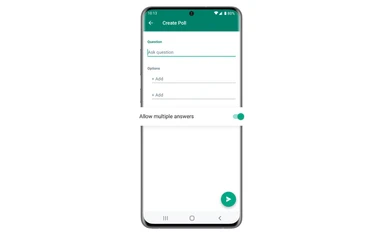
- Under Question, enter the question you want to ask your group. Poll questions are limited to 255 characters.
- Under Options, enter up to 12 poll options. Poll options are limited to 100 characters.
- Tap and hold Reorder (four parallel horizontal gray lines icon) next to an option to change the order of your poll options by sliding up or down.
- Users can vote for multiple options on polls by default. To prevent users from voting for more than one option, turn off Allow multiple answers.
- Tap Send (paper airplane icon) to create your poll.
Note: To receive updates on incoming votes, make sure push notifications for WhatsApp are enabled on your device.
How to make polls on WhatsApp for iOS users
- Open WhatsApp and click on the desired chat.
- Tap Attach (plus icon), follow it with a tap on Poll.
- Under Question, enter the question you want to ask your group.
- Under Options, enter up to 12 poll options.
- Tap and hold Drag Item (three parallel horizontal lines) next to an option to change the order of your poll options by sliding up or down.
- To prevent users from voting for more than one option, turn off Allow multiple answers.
- Tap Send to create your poll.
Respond to a poll on WhatsApp
- To respond to a poll, tap the option, or options, you want to vote for.
- To remove your vote for an option, tap the option again.
- Note: If the poll creator has turned off multiple answers, tapping an option will deselect any options that you previously tapped.
View poll results on WhatsApp
To view the results of an active poll, including the number of members who have voted:
- Open the chat with the poll you want to view.
- Locate the poll, then tap View votes.
More From This Section

 "Apple MacBook Pro with M4 family of chips")
 "Samsung Galaxy Buds 3 Pro")
 "Galaxy Z Flip 7")
 "OpenAI's GPT-5 in Microsoft Copilot")
 "Meta's Tiramisu, Boba 3 and Boba 3 VR headsets")
Don't miss the most important news and views of the day. Get them on our Telegram channel
First Published: Aug 08 2025 | 4:31 PM IST