


Don't like new Google Phone app UI? Here's how to revert to older version
Google Phone app's new UI sparked backlash as users report confusion, accidental hang-ups, and tougher contact access. If you share same sentiments, follow steps below to move back to previous version
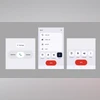 "Google Phone app new update")
Google Phone app new update
Listen to This Article
Google had recently rolled out an update to the Phone app on Android, introducing a refreshed UI, new gestures, and Material 3 Expressive design elements. However, the redesign has not gone down well with users. Beyond the revamped dialler interface, the way calls are answered has changed; calls can be accepted or declined with a slide gesture, which can be confusing for less tech-savvy users.
Soon, social media was flooded with memes and lighthearted posts about the update. While many users felt it disrupted years of muscle memory, leading to accidental hang-ups and harder access to contacts, the refreshed layout does bring clearer separation in contacts and call history with new horizontal lines for better readability.
Overall, the new design feels less intuitive and comes with a noticeable learning curve for many. Many users have expressed their dissatisfaction with the update, calling it “blocky, and oversized,” but some found the newly introduced interface up to their liking. Some Reddit and X users have criticised the new design updates, calling them “oversized and ugly.”
Also Read

 "Google Quick Share (Image: Google)")
 "Google")
 "Key updates to NotebookLM's Video and Audio Overview")
 "Google Pixel 10")
 "Google Pixel 10 Pro, Pixel 10 Pro XL")
If you want the old UI back, here is a step-by-step guide to do that on your smartphone.
Step 1: Play Store
- On the Play Store app of your Android smartphone, tap on the profile icon (the one with the picture) located in the top right corner.
- Scroll down and select Settings.
- Tap on the “Network preferences” dropdown and go to “Auto-update apps.”
- Now choose “Don’t auto-update apps” to stop the dialler app from automatic updates.
Step 2: Clear Cache
- In Settings on your phone, go to Apps, and then to Phone.
- Tap on “Storage & cache” and choose “Clear cache” option.
Step 3: Phone App in Play Store
- In the Play Store, search for Google Phone app.
- Choose the app from the search results.
- Select “Uninstall.”
This will revert the app to its original version with the familiar UI. However, disabling auto-updates is not recommended. Alternatively, you can switch to a secondary dialler app from your device manufacturer and set it as the default.
More From This Section
 "iOS 26 Public Beta 5")
 "Apple AirPods Pro 2 (Image: Apple)")
 "iPhone 16 ProiPhone 16 Pro")
 "Samsung Galaxy A07")
 "Apple Koregaon Park store in Pune")
Topics : Google Technology News Google apps
Don't miss the most important news and views of the day. Get them on our Telegram channel
First Published: Aug 26 2025 | 5:17 PM IST