


Google offers another Gemini paid feature for free on Android: Details here
Initially, the on-screen awareness and camera sharing features of the Gemini Live were offered in free-tier model only to select Pixel and Samsung Galaxy smartphones
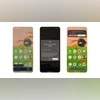 "Share screen with Gemini Live on a Pixel 9 series smartphone (Screenshots)")
Share screen with Gemini Live on a Pixel 9 series smartphone (Screenshots)
Listen to This Article
Google has announced that it has started rolling out its Gemini Live’s camera and screen sharing features to all Android users with Gemini app. These features allow users to share their device’s screen or camera feed in real-time with the AI assistant, enabling more interactive and visually-aware conversations.
The feature rolled out earlier this month for all users with Google Pixel 9 series and Samsung Galaxy S25 series devices, while it was limited to Gemini Advanced subscribers on other Pixel smartphones. Now, it is available for all Android devices with Gemini app.
Camera and screen sharing with Gemini Live: Details
This feature turns Gemini into a real-time problem solver. With these new abilities, Gemini can understand what is on the screen of the smartphone or in the camera viewfinder, and offer relevant answers to questions in real time.
For example, you can point the smartphone camera at any object and ask Gemini to provide information related to it and the assistant will provide relevant answers in real time as the camera moves. Similarly, using the share screen option will address users' query or help depending on what is visible on the device’s screen such as websites, images, or documents.
How to share screen with Gemini Live
There are two ways to enable screen sharing:
Also Read

 "Anthropic Claude 3 model")
 "Studio Ghibli, ChatGPT, OpenAI, artificial intelligence")
 "Google Veo 2 in Gemini")
 "Google Gemini and Photos (Google)")
 "Gemini app on Android")
Through the Gemini Mobile App:
- Open the Gemini app and go to the Live interface.
- Tap on the new “Turn on screen sharing” button at the bottom.
- On the pop-up menu tap on “Share screen.”
Outside the Gemini App:
- Activate Gemini by long-pressing the power button (available only on select devices) or using a voice command.
- Tap on the “Share screen with Live” floating button that appears over the Gemini overlay.
- On the pop-up menu tap on “Share screen.”
To stop sharing, return to the Gemini mobile app and tap “Turn off screen sharing.” Alternatively, swipe down from the top edge of the screen and tap “Stop sharing” on the Screen Sharing card. Screen sharing also stops automatically if Live is paused or the screen is locked.
How to share camera in Gemini Live
While screen sharing is active, users can open their camera app to show Gemini what they are seeing. Alternatively:
- Tap the camera icon in Gemini Live to start sharing a live feed.
- Tap it again to stop.
- Switch between front and rear cameras as needed.
Google has specified that the camera will automatically turn off in the following situations:
- If Gemini Live is paused (it will restart automatically when resumed).
- If your screen locks (you will need to manually turn the camera back on).
More From This Section
 "Microsoft Copilot AI gets voice and vision: What's new")
 "Image analysis with new o-series reasoning models")
 "Vivo V50e (Image: Vivo)")
 "Xbox")

Topics : Artificial intelligence Gemini AI Google's AI
Don't miss the most important news and views of the day. Get them on our Telegram channel
First Published: Apr 17 2025 | 12:55 PM IST