


Microsoft explores Android apps continuity feature on Windows 11: Know more
The Windows 11 beta version aimed at developers lets users resume Android apps on their PC, starting with Spotify, allowing tracks and episodes to continue playing from phone to desktop
 "AbilResume apps from Android phone on PC")
AbilResume apps from Android phone on PC
Listen to This Article
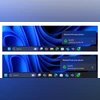
Microsoft has introduced a feature for Windows Insiders in the Dev and Beta Channels that allows apps from an Android phone to be resumed directly on a linked Windows 11 PC. The feature is initially available for Spotify, enabling users to continue playing tracks or episodes from the exact point they left off on their phone. As the rollout is gradual, the feature may not appear immediately for all users.
Spotify resume on Windows 11 PC: How it works
To use it, start listening to a song or episode in the Spotify app on your Android phone. On a linked PC running the latest Insider Preview builds, a ‘Resume alert’ will appear on the taskbar. Clicking the alert opens Spotify’s desktop app, continuing playback from the phone. If Spotify is not installed on your PC, clicking the alert will initiate a one-click installation from the Microsoft Store and automatically open the app. Users must sign in with the same Spotify account on both devices.
How to set up the feature
Turn on access to your phone:
- On your PC, open Settings.
- Go to Bluetooth & devices.
- Select Mobile devices.
- Turn on “Allow this PC to access your mobile devices.”
- Click Manage devices and follow the instructions to connect your Android phone.
Set up Link to Windows on your phone:
- Open the Link to Windows app.
- Allow the app to run in the background for reliable Resume functionality.
To try the feature:
- Open Spotify on your phone and play a track or episode.
- A Resume alert should appear on your PC’s taskbar.
- Click it to continue playback seamlessly.
Other Windows 11 features
Battery icon on lock screen
Microsoft has redesigned the battery icons to provide a clear and quick view of your PC’s battery status. The updated icon feature is now being extended to the lock screen, so you can monitor your battery without even logging in.
Click to Do (Preview)
On a Copilot+ PC with a touch screen, you can press and hold two fingers anywhere on the screen to launch Click to Do. This gesture selects the item under your fingers and displays relevant actions. This new touch-based method offers a faster way to access Click to Do, similar to using Win + Click with a mouse or touchpad.
Agent in Settings
There is a new direct navigation link added in the agent search results, allowing users to quickly access the corresponding settings page without having to manually search through menus.
Also Read

 "Microsoft Windows 11 SE")
 "Windows 11 new update (Image: Microsoft)")
 "Tech Wrap July 22")
 "Microsoft BSOD screen")
 "Enabling plugin passkey services in Settings.")
Automatic Super Resolution
The following updates are rolling out for Automatic Super Resolution (Auto SR) on Snapdragon-powered Copilot+ PCs: The settings controls have been simplified, and users can now configure Auto SR more easily through streamlined options directly
accessible from toast notifications.
New Shortcuts
Windows is introducing a new keyboard shortcut to quickly insert dashes while typing. Pressing WIN + Minus (-) will insert an En dash (–), and WIN + Shift + Minus (-) will insert an Em dash (—). Note that if Magnifier is active, WIN + Minus (-) will continue to zoom out instead of inserting an En dash.
Windows Share
Recent Dev and Beta builds include a feature that allows users to pin their favourite apps directly in the Windows share window for faster access.
More From This Section
 "OnePlus Pad 3 (Image: OnePlus)")
 "Google Pixel 10 Pro, Pixel 10 Pro XL")
 "Lava Play Ultra 5G")
 "BGMI")
 "Google Vids")
Don't miss the most important news and views of the day. Get them on our Telegram channel
First Published: Aug 25 2025 | 3:17 PM IST