


Google expands Quick Share-AirDrop interoperability beyond Pixel 10 series
Google Pixel 9 series (except Pixel 9a) smartphone users can now send and receive files with iPhones, iPads and Macs using native AirDrop support via Quick Share
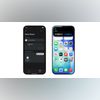 "Android's Quick Share feature is now compatible with Apple AirDrop")
Android's Quick Share feature is now compatible with Apple AirDrop
Listen to This Article
Google has rolled out Android’s Quick Share interoperability with Apple’s AirDrop beyond the Pixel 10 series. According to Google’s support page, the feature is now available in Pixel 9, 9 Pro, 9 Pro XL, and 9 Pro Fold through Quick Share. However, the company noted that the feature is not accessible in the Pixel 9a phone. Additionally, the company added that privacy and speed remain a priority, as the feature is engineered with multi-layered security at its foundation. The Quick Share feature allows users on Android and Apple devices to send files directly to each other without relying on third-party apps or cloud services.
Google’s Quick Share compatibility with AirDrop expands: Details
With AirDrop interoperability, Pixel 9 and Pixel 10 devices can send files to an iPhone, iPad or Mac, similar to how AirDrop works between Apple devices. The transfer happens directly between devices and does not require an internet connection.
To use the feature, the Apple user needs to set AirDrop to “Everyone for 10 minutes” on their iPhone, iPad or Mac. From the Pixel device, open Quick Share, select the nearby Apple device and send the file. The recipient will have to approve the transfer. The process works through direct Bluetooth and Wi-Fi connections.
Google has explained previously that the new system connects devices directly. According to the company, “This feature does not use a workaround; the connection is direct and peer-to-peer, meaning your data is never routed through a server, shared content is never logged, and no extra data is shared.”
Google said that the rollout began this week and is being released in phases over the next few weeks. To check if the update has reached your device, open Settings, search for “System services,” go to Available Updates, and install the Quick Share Extension if it’s listed. Some Pixel 9 users have reportedly begun sharing files after updating.
Also Read

 "apple, apple logo")
 "Claude Sonnet 4.6 (Image: Anthropic)")
 "Bharat Mandapam, ai summit")
 "Snapchat Creator Subscription")
 "Samsung Galaxy Unpacked 2026")
Other Android devices
Behind the scenes, Google had reportedly already taken steps that hinted at a wider rollout. Instead of keeping the feature tied to Pixel-only system software. According to the Android Authority report, this change suggested that AirDrop interoperability was being treated as a core Quick Share feature, rather than something exclusive to Pixel hardware.
Earlier, UK-based consumer technology company Nothing confirmed that it is working on bringing the feature to its devices. Among the chipmakers, US-based Qualcomm has also previously confirmed that Android smartphones running Snapdragon processors will soon gain support for cross-platform file sharing with Apple devices.
Quick Share compatibility with AirDrop: Eligible devices
- Google Pixel 10
- Google Pixel 10 Pro
- Google Pixel 10 Pro XL
- Google Pixel 10 Pro Fold
- Google Pixel 9
- Google Pixel 9 Pro
- Google Pixel 9 Pro XL
- Google Pixel 9 Pro Fold
How to share files from an eligible Pixel phone to an iPhone/iPad/Mac
- Before you begin, ensure your Quick Share extension is updated. You can update it via the Google Play Store or by installing the latest system software.
- On your iPhone, iPad or Mac, open the Settings app and search for AirDrop.
- In the AirDrop settings, set visibility to Everyone for 10 Minutes.
- On your eligible Pixel phone, choose the file or photos you want to send and tap Share.
- Select Quick Share from the sharing menu.
- Pick the Apple device from the list of visible devices.
- On your Apple device, tap or click Accept when the AirDrop prompt appears.
How to share files from an iPhone/iPad/Mac to an eligible Pixel phone
- On your eligible Pixel device, open Settings and search for Quick Share.
- In Quick Share settings, set visibility to Everyone for 10 Minutes.
- On your Apple device, choose the file or photos you want to send and tap Share.
- Select AirDrop from the sharing menu.
- Choose the selected phone from the device list.
- On your Pixel device, tap Accept when the Quick Share notification appears.
More From This Section
 "Microsoft Corp. President Brad Smith")
 "OpenAI, Amazon, investment")
 "Hollywood")
 "India AI Impact Summit 2026, Bharat Mandapam")
 "India AI Impact Summit, AI Summit")
Don't miss the most important news and views of the day. Get them on our Telegram channel
First Published: Feb 18 2026 | 4:19 PM IST