


AirPods as microphone in iPhone camera: How to use, eligible models, more
Apple users running iOS 26 can now record videos using their AirPods as a wireless microphone, replacing the iPhone's built-in mic. Here is how to use, eligible models, and more
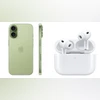 "Apple iPhone 17 and AirPods Pro 3")
Apple iPhone 17 and AirPods Pro 3
Listen to This Article
Apple’s AirPods can now be used as a wireless microphone when recording videos through the iPhone’s Camera and select third-party apps such as Blackmagic Cam, allowing users to capture audio during filming even from distance. The feature lets the AirPods transmit sound directly to the iPhone while filming, replacing the device’s built-in mic. Although the option isn’t prominently displayed in the Camera interface, users can enable it by following the steps below.
It should be noted that this feature will work only on iPhones running on iOS 26.
iOS 26: Eligible models
- iPhone 17 series: iPhone 17, iPhone 17 Pro, iPhone 17 Pro Max, iPhone 17 Air
- iPhone 16 series: iPhone 16, iPhone 16 Plus, iPhone 16 Pro, iPhone 16 Pro Max, iPhone 16e
- iPhone 15 series: iPhone 15, iPhone 15 Plus, iPhone 15 Pro, iPhone 15 Pro Max
- iPhone 14 series: iPhone 14, iPhone 14 Plus, iPhone 14 Pro, iPhone 14 Pro Max
- iPhone 13 series: iPhone 13, iPhone 13 mini, iPhone 13 Pro, iPhone 13 Pro Max
- iPhone 12 series: iPhone 12, iPhone 12 mini, iPhone 12 Pro, iPhone 12 Pro Max
- iPhone 11 series: iPhone 11, iPhone 11 Pro, iPhone 11 Pro Max
- iPhone SE (2nd generation and later)
How to use AirPods as a mic in iPhone camera app
- Wear your AirPods, and make sure they’re connected to your iPhone.
- Go to the Camera app (or another supported camera app) on your iPhone.
- Select Video mode in the Camera app.
-
Open Control Center by swiping down from the top-right corner of the screen, tap Camera Controls, then do any of the following:
- Input: Tap the name of your AirPods.
- Mic mode: Tap automatic, standard, voice isolation, or wide spectrum.
Alternatively, you can also select your AirPods as a microphone in Settings. Go to the Settings app, tap Sounds and Haptics, tap Input, then select your AirPods.
Also Read

 "Apple AirPods Pro 2 (Image: Apple)")
 "Apple AirPods 4 ANC")
 "Apple, Apple Inc")
 "Foxconn")
Additionally, users can also use the aforementioned AirPods to take a photo or start recording a video in apps like the Camera app. However, not all AirPods support this feature. Eligible models include:
- AirPods 4
- AirPods Pro 2
- AirPods Pro 3
On the supported models, make sure the AirPods are set up as a camera remote. Here’s how you can do it:
- Wear your AirPods, and make sure they’re connected to your iPhone or iPad.
- Go to the Settings on your iPhone or iPad.
- Tap the name of your AirPods near the top of the screen.
- Tap Camera Remote, then tap either Press Once or Press and Hold.
Apple on its support page has noted that if you select Press Once, media control gestures are temporarily unavailable while you use a supported camera app. If you select Press and Hold, listening modes and Siri gestures are temporarily unavailable while you use a supported camera app.
How to use AirPods to take photos, record video
- Wear your AirPods, and make sure they’re connected to your iPhone.
- Go to the Camera app (or another supported camera app) on your iPhone.
-
Do one of the following:
- Take a photo: Press the stem on your AirPods.
- Take a video: Select Video mode in the Camera app, then press the stem on your AirPods. To stop recording video, press the stem again.
AirPods Pro 3 unboxing
More From This Section
 "Apple iOS 26")
 "Genshin Impact")
 "Robin Williams")
 "Nothing unveils Essential")
 "OnePlus OxygenOS 16 launching in India")
Topics : Apple AirPods Apple iPhone
Don't miss the most important news and views of the day. Get them on our Telegram channel
First Published: Oct 07 2025 | 4:59 PM IST